
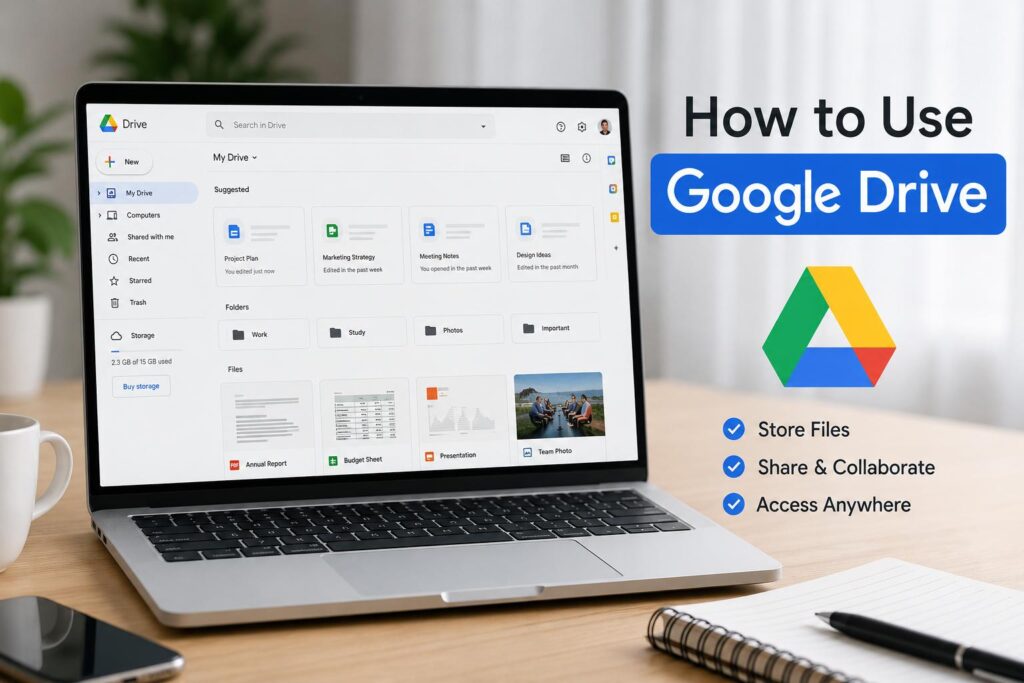
Google Drive is a widely used cloud storage platform that enables millions of users to store, organize, access, and share files online globally. Whether you are a student, teacher, business owner, freelancer, or casual internet user, Google Drive simplifies the management of documents, photos, videos, and other important files from any device with an internet connection.
Integration with other Google Services, such as Google Docs, Sheets, Slides, Gmail, and Google Photos, is a major advantage of Google Drive. This enables users to collaborate in real time, access files anywhere, and keep important data safely backed up in the cloud. In this guide, you will learn everything you need to know to use Google Drive effectively.
What is Google Drive?
Google Drive is a Google cloud storage service that allows users to store files online and access them from multiple devices. Google Drive stores files securely on Google’s servers, allowing them to be accessed anytime via the internet.
Google Drive not only supports various types of files, including documents, images, videos, PDFs, presentations, spreadsheets, and compressed files, but also allows users to create, edit, and collaborate on documents directly within the browser without needing additional software.
Features of Google Drive
Google Drive offers many useful features to make file management easier and more efficient. Users of Google Drive can upload files, create folders, share documents, collaborate with teams, sync files across devices, and recover deleted files from the trash.
Real-time collaboration is a key feature of Google Drive that enables multiple users to work on the same Google Doc, Sheet, or Slide simultaneously, viewing edits as they happen. Google Drive also offers automatic saving, advanced search filters, file version history, and robust security measures to protect user data.
How to create a Google Drive account
A Google account is necessary to use Google Drive. To create a free account, visit the official Google Account Signup Page and enter your name, email address, and password.
Once your Google account is created, Google Drive becomes automatically available. Every new account includes free cloud storage space for documents, photos, videos, and other files.
How to access Google Drive
Google Drive can be accessed through a web browser by visiting Google Drive. Then, sign in with your Google account. It works on desktops, laptops, tablets, and smartphones.
Google Drive is also available for Android and iPhone devices through dedicated mobile apps. Users can install Google Drive for Desktop to sync files directly between their computer and cloud storage.
Understanding the Google Drive Interface

Google Drive’s interface is simple and user-friendly. The left sidebar contains important sections such as My Drive, Shared with Me, Recent, Starred, Trash, and Storage. These sections help users to organize and access files quickly.
Folders and files are displayed in the main area, while the top search bar allows users to find content instantly. The interface also includes buttons for uploading files, creating folders, and starting new Google Docs, Sheets, or Slides.
How to upload files to Google Drive
Uploading files to Google Drive is very easy. Users can click the “New” button and select “File Upload” or “Folder Upload” to add content from their computer.
Files can be uploaded directly into the browser window using drag-and-drop functionality. Once uploaded, these files are accessible from any device connected to the same Google account.
How to create folders in Google Drive
Folders are helpful for users to organize files efficiently inside Google Drive. To create a new folder in Google Drive, click the “New” button and select “Folder,” then enter a folder name.
Multiple folders and subfolders can be created to separate work documents, personal files, school projects, photos, or business materials. Organized folders make file management much easier over time.
How to organize files and folders
Google Drive enables users to organize files with folders, colors, stars, and effective naming systems. Users can easily move files between folders using drag-and-drop actions.
Users can utilize the “Starred” feature for quick access to important documents. Organizing files effectively enhances productivity and reduces the time spent locating them later. later.
How to create Google Docs, Sheets, and Slides
Google Docs, Google Sheets, and Google Slides are built-in tools inside Google Drive.
These files can be directly created from Google Drive without installing additional software. Documents are automatically saved online and can be edited collaboratively in real time.
How to share files on Google Drive
File sharing is simple and fast in Google Drive. Files or folders can be shared by right-clicking an item and selecting “Share.”
Files can also be shared using email addresses or public links. Shared users can view, comment on, or edit documents depending on the permissions assigned by the owner.
Understanding Google Drive sharing permissions
Google Drive offers various permission levels for shared files, allowing users to assign Viewer, Commenter, or Editor access based on the control they wish others to have.
These permission settings maintain security and prevent unauthorized editing or deletion of important files. Owners can change or remove permissions at any time.
How to generate a shareable link
Shareable links can be created for files and folders through the sharing settings to allow quick access without manually adding email addresses.
The owner chooses whether the link is restricted, available to specific people, or accessible to anyone with the link. Permissions can also be customized for link users.
How to collaborate with others in real time
One of the most powerful features of Google Drive is its ability for real-time collaboration. Multiple users can edit the same document at the same time, and their changes appear instantly.ear instantly.
This feature of Google Drive is especially useful for teams, students, teachers, and businesses working remotely. Users can also leave comments, suggestions, and chat within documents during collaboration.
How to use Google Drive offline
Users can use Google Drive offline by enabling offline access in settings, allowing users to view and edit selected files without an internet connection.
Google Drive automatically syncs all offline changes to the cloud once the device reconnects to the internet. This feature is useful during travel or internet outages.
How to sync Google Drive with your computer
Google Drive for Desktop enables users to sync files seamlessly between their computer and cloud storage. Any changes made on one device instantly reflect on all connected devices.s.
This sync keeps users’ important files backed up and easily accessible without needing to upload content repeatedly.
How to use Google Drive on Android and iPhone
Google Drive’s mobile apps enable users to upload, download, view, and share files directly from smartphones and tablets. Additionally, the apps support scanning documents with the phone’s camera.
Mobile users can access files anywhere, collaborate with teams, and receive notifications about shared content or document updates.
How to search for files quickly in Google Drive
Google Drive has a powerful search feature to locate files instantly. Users can search by using file names, keywords, owners, file types, or dates.
Advanced search filters have improved accuracy and save time, especially for users managing large numbers of files and folders.
How to recover deleted files from the Trash
Deleted files move to the Trash folder instead of being permanently erased immediately, and can be restored from Trash within a limited period.
This feature can recover accidentally deleted documents and prevent permanent data loss in many situations.
How to use Google Drive for backup and storage
Google Drive is commonly used to back up important data, including photos, videos, documents, and work projects. Cloud storage ensures that files are protected from device damage or loss.ice damage or loss.
Users can store files online to free up local storage while keeping easy access whenever needed.
Google Drive storage limits and pricing plans
Google offers complimentary cloud storage with each account, but users who require more space can upgrade to paid plans via Google One.
Paid plans provide larger storage options and extra features like family sharing, VPN services, and enhanced support.
Tips to keep your Google Drive organized
Google Drive management can be improved by using clear folder names, deleting unnecessary files, and regularly organizing content. Color-coded folders and starred files are also helpful in finding important documents faster.
Proper organization prevents clutter and improves productivity, especially for storing large amounts of data.
Google Drive security and privacy features
Google Drive provides strong security features. They are encrypted file transfers, account verification, suspicious activity monitoring, and two-factor authentication.
Strong passwords and carefully managed sharing permissions must be used to keep sensitive files secure from unauthorized access.
Common Google Drive problems and solutions
Syncing errors, storage limits, slow uploads, and permission conflicts are the common issues of Google Drive. All such problems can be solved by refreshing the browser, clearing the cache, checking the internet connections, or updating apps.
Google offers official help resources and troubleshooting guides to avoid technical difficulties.
Advantages of using Google Drive
There are many advantages of using Google Drive, including free cloud storage, easy collaboration, automatic saving, multi-device access, and seamless integration with Google services.
Its intuitive interface and real-time collaboration tools make it suitable for students, professionals, businesses, and personal users.
Best Google Drive tips and tricks
Productivity can be improved by using keyboard shortcuts, offline mode, advanced search filters, starred files, and folder color customization.
These tips and tricks are really helpful to work faster, stay organized, and maximize the full potential of Google Drive.
Google Drive vs OneDrive vs Dropbox
Google Drive, Microsoft OneDrive, and Dropbox are some of the most popular cloud storage services available today.
Google Drive is known for its collaboration features. OneDrive integrates deeply with Microsoft Office. Dropbox is recognized for its simple file synchronization and sharing system.
Who should use Google Drive?
Google Drive is useful for students, teachers, businesses, freelancers, remote teams, bloggers, and casual users who need secure online storage and collaboration tools.
Google Drive is a simple and reliable cloud storage option for personal or professional use.
Conclusion
Google Drive is an excellent cloud storage and collaboration platform. Its robust features, user-friendly interface, real-time collaboration tools, and seamless integration with Google services make it exceptionally useful for managing files daily.
Google Drive is a dependable and efficient solution for storing documents, collaborating with teams, backing up important files, and accessing content from multiple devices, suitable for users of all experience levels.
Frequently Asked Questions
Is Google Drive free to use?
Yes, Google Drive offers free cloud storage with every Google account, although users can upgrade to paid plans for additional storage.
Can I use Google Drive offline?
Yes, offline access can be enabled for selected files and documents.
Is Google Drive safe for storing files?
Google Drive includes strong security protections such as encryption and two-factor authentication.
Can multiple people edit the same document?
Yes, Google Drive supports real-time collaboration where multiple users can edit documents simultaneously.
What happens if I delete a file accidentally?
Deleted files are moved to the Trash folder and can usually be restored before permanent deletion.